Reject Records with X-ray Images
The X-ray image behind every recorded reject
A Reject Counter Does Not Tell the Whole Story
A reject counter tells you how many packs the X-ray system rejected. It does not show what the system saw, which check made the decision or whether a rising reject rate is telling you something about the line.
Those answers are in the X-ray images behind the rejects. When an auditor, a customer or your own team asks about one batch, they have to be found for the right line, product and time window.
Recorded Rejects, With Their Images
On the System
Your MEKI AI systems already record what they inspect, what they reject and which routine checks were done. Products run for validation checks are marked separately and can be filtered in one click, so they do not mix with production rejects.
Across All Connected Lines
MEKI Analytics brings the records together from all connected systems:
- Batch results: the product, start and end time, products inspected, recorded rejects and the reject rate, with the rejects on a timeline
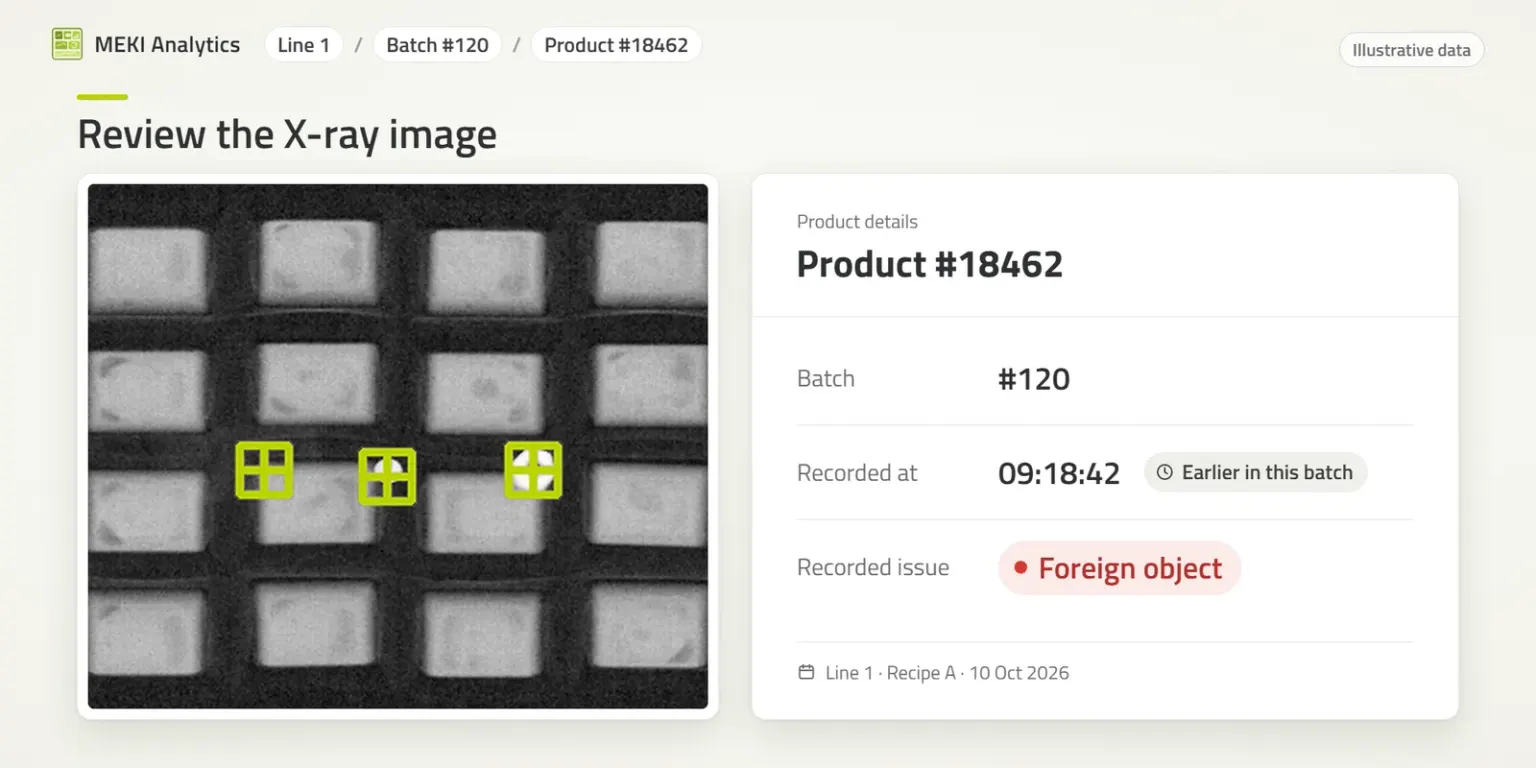
- Reject detail: open a recorded reject to see its X-ray image with the detections marked, when it was recorded and which check rejected it
- Filters by line, product and time window
A number of rejects per shift or batch, with nothing to show what the system saw or why it rejected
Each recorded reject with its X-ray image, the time and the check that rejected it, ready to review
How QA Uses Reject Records
- Answering questions about a batch from an auditor, a customer or your own team, for a defined line, product and time window
- Seeing what the system detected in a rejected pack, from the X-ray image with the detections marked
- Spotting changes early: defect analysis shows which reject reasons occur most often and when, and SPC control charts show the reject rate per batch with warning and control limits
- Checking before changing: when a product starts rejecting more than usual, you see it in the trend and can check the X-ray images behind the numbers before you change anything on the line
What Reject Records Show, and What They Do Not
Reject records show what the system detected and rejected. Whether a rejected pack actually reached the reject bin is a separate question, answered by reject confirmation. Decisions about rejected product, and the HACCP records outside the connected systems, remain part of your site's procedures.
Part of a Complete X-ray CCP
A Critical Control Point for foreign bodies has to answer five questions. Reject records help answer the last one:
- INSPECT: Was the product inspected? See foreign object detection at the CCP.
- REMOVE and PROVE: Was suspect product removed, and was removal confirmed? See reject confirmation.
- CHECK: Were the routine checks done? See Validation Mode.
- RECORD: Can the records be retrieved for a defined line, product and time window? See CCP Monitoring and reject records with X-ray images (this page).
Equipment and software support the CCP. Validating it for each product remains part of your site's procedures. Read more in What Makes a Critical Control Point Complete?
Read more in What Records Should You Be Able to Retrieve for an X-Ray CCP?
See Reject Records With Example Data
The live demo runs MEKI Analytics on example production lines. Request access and our sales team will email you a personal link.
Request Access to the Live Demo
Disclaimer: All information is provided for information purposes only and shall not be considered as assured characteristics. The information and technical data presented in this document are subject to change. Customers should obtain and verify the latest relevant information before placing orders.
Key Features
X-ray Image of Each Reject
The image with the detections marked, the time and the check that rejected it
Batch Results
Product, start and end time, products inspected, rejects and reject rate, with rejects on a timeline
Defect Analysis and SPC
Which reject reasons occur most often and when, with control charts of the reject rate per batch
On the System or the Desktop
Built into each system, or a Windows desktop app that brings several systems together